How to Wipe a Hard Drive Securely for Compliance


Think hitting "delete" on a file is enough? Think again.
If you want to truly erase data from a hard drive, you can't just delete files. You need to use specialized software to overwrite the entire disk with random data. This process, known as wiping a hard drive, is the only way to make the original information completely unrecoverable. It’s an essential step before you sell, donate, or recycle any hardware, whether you're a local business in Atlanta or a corporation with offices nationwide.
Why Securely Wiping a Hard Drive Is Critical for Business
When you delete a file or format a drive, the operating system doesn't actually erase the data. It just removes the pointer to that file, leaving the information itself sitting on the disk. This hidden data, called data remanence, can be easily brought back to life with widely available recovery tools.
For any business, this creates a massive and often overlooked security hole.
Imagine an old office computer full of patient records, or a server that's been decommissioned but still holds proprietary research. If that hardware leaves your facility without being professionally sanitized, you're exposing your organization to potentially devastating consequences. A single data breach can spiral into severe financial penalties, legal battles, and a damaged reputation that’s hard to rebuild.
The High Cost of Improper Data Disposal
For organizations across the U.S. in healthcare, research, and government, the stakes are even higher. Regulatory bodies have strict rules for data protection, and non-compliance comes with crippling fines. A HIPAA violation, for example, can cost up to $50,000 per incident.
The financial damage doesn't stop with penalties. You also have to factor in the costs of credit monitoring for affected individuals, legal fees, and the PR nightmare of trying to restore public trust. This isn't just a theoretical problem—data breaches from improperly disposed IT assets happen all the time, serving as a harsh reminder of what's at risk.
An improperly handled hard drive is a ticking time bomb. It’s not a matter of if the data will be found, but when—and by whom. Professional-grade wiping is the only way to defuse that threat and ensure complete data destruction.
More Than Just a Technical Task
Knowing how to properly wipe a hard drive is a core business practice, not just another job for the IT department. It’s a crucial part of any secure data lifecycle management plan. Whether you're a local clinic in Atlanta, GA, or a nationwide corporation, having a clear, defensible data destruction policy is non-negotiable.
Proper sanitization protects more than just your data; it protects your bottom line and your brand. By adopting professional-grade wiping methods, you guarantee that sensitive information is gone for good, keeping you compliant and safeguarding your organization's future. You can learn more about developing a secure strategy for IT asset disposal and see how it fits into your broader operational plans. This guide will give you the practical, step-by-step knowledge you need to handle this critical responsibility with confidence.
Wiping vs. Shredding: Choosing the Right Data Destruction Method
Before you even think about how to wipe a hard drive, you need to step back and look at the bigger picture. Your choice between software wiping and physical shredding is a critical one with major impacts on your security, budget, and even your company's sustainability goals. The right call comes down to two things: how sensitive the data is and what you plan to do with the hardware afterward.
A lot of people fall into the trap of thinking that formatting a drive is good enough. That’s a dangerous misconception. Formatting just rips out the file system’s address book, but all the data is still sitting there, easily recoverable with off-the-shelf software. It’s the digital equivalent of tearing the table of contents out of a book—the chapters are all still intact.
Software wiping is a completely different beast. It's a methodical process that overwrites every single sector of the drive with random data, often in multiple passes. This process essentially buries the original information under layers of digital gibberish, making it practically impossible for anyone to recover.
When to Choose Software Wiping
Software wiping is your best bet when you plan to reuse, resell, or donate the hardware. Because the drive is left physically intact and fully functional, you can safely give it a second life without worrying about a data breach. This approach is not only good for your bottom line but also for the environment.
Here are a few real-world scenarios where wiping is the clear winner:
- Employee Offboarding: An employee leaves, and you get their laptop back. A thorough wipe allows you to safely redeploy that machine to a new hire without any risk.
- Technology Upgrades: Your Atlanta office is upgrading its servers. The old drives can be professionally wiped and sold to an IT asset disposition (ITAD) vendor, helping you recover some value from the old equipment.
- Lease Returns: Most equipment leases require you to return the hardware with all your company's data securely sanitized. Wiping is often a contractual obligation in these cases.
The biggest advantage of wiping is its ability to preserve the value of your IT assets. By sanitizing drives instead of destroying them, you create a sustainable and financially smart hardware lifecycle program.
The market for Secure Data Destruction is expected to hit $3.72 billion for a reason. While shredding gives you ultimate peace of mind, wiping has some serious benefits. It can cost 30-50% less and keeps nearly 90% of equipment out of landfills. With 82% of IT managers pointing to compliance as a key reason for using professional services, the method you choose matters. You can dig into the full market analysis in this secure data destruction trends report from Research and Markets.
When Physical Shredding Is Necessary
Sometimes, wiping just isn't an option or doesn't meet the security threshold. That’s where physical shredding comes in. The process involves grinding a hard drive down into a pile of tiny, mangled metal fragments, offering an absolute guarantee that the data is gone forever. It's the gold standard for maximum-security data disposal.
Shredding is the only way to go in these situations:
- Non-Functional Drives: If a drive has failed, been physically damaged, or just won't power on, wiping software can't even access it. Shredding is the only surefire way to destroy the data.
- Top-Secret or Classified Data: For government agencies, defense contractors, or R&D firms across the nation handling extremely sensitive information, internal policies often mandate physical destruction. There's no room for error.
- End-of-Life Media: When drives are too old, too small, or too slow to be reused, shredding ensures the data is destroyed and the raw materials are properly recycled. Our guide on professional hard drive shredding dives deeper into how this process works.
So, how do you decide what's right for you? It's all about weighing your options. This table breaks it down.
Data Destruction Methods Compared
| Method | Security Level | Ideal Use Case | Asset Reuse Possible? | Cost & Time |
|---|---|---|---|---|
| Formatting | Very Low | Preparing a drive for personal, non-sensitive reuse. | Yes | Low Cost: Very fast (minutes). |
| Software Wiping | High | Reusing, reselling, or donating drives with sensitive data. | Yes | Moderate Cost: Can take hours per drive. |
| Physical Shredding | Maximum | Failed/damaged drives or those with top-secret data. | No | Highest Cost: Fast, but destroys the asset. |
In the end, the "wiping vs. shredding" debate is about balancing security needs, asset value, and operational realities. By understanding where each method shines, you can build a data destruction strategy that is compliant, cost-effective, and environmentally responsible.
Understanding Wiping Standards: DoD vs. NIST
When it's time to wipe a hard drive, you’re not just deleting files—you’re following a specific, technical rulebook. Not all wiping methods are created equal, and the one you choose is critical for staying compliant and ensuring your data is gone for good.
The two heavyweights in this arena are the Department of Defense (DoD) 5220.22-M and the National Institute of Standards and Technology (NIST) 800-88 guidelines. Understanding the difference isn't just for IT pros; it's a business necessity, especially if you handle sensitive information. The standard you pick determines whether your data sanitization process will pass an audit.
The DoD 5220.22-M Standard: A Trusted Benchmark
For years, the DoD 5220.22-M standard was the undisputed champion of data destruction. It’s best known for its 3-pass overwriting method, where the drive is systematically overwritten with patterns of ones, zeros, and then random characters. This process was originally designed to thwart forensic tools that could pick up faint magnetic traces of old data on a drive platter.
While the DoD has since moved on to newer guidelines for its own use, the 3-pass standard remains incredibly popular in the private sector. There’s a good reason for its staying power:
- Commercial and Healthcare Trust: Many organizations nationwide, particularly in healthcare, still lean on the DoD 3-pass method to satisfy HIPAA data sanitization rules.
- Defensible and Verifiable: The process is straightforward, creating an audit trail that’s easy to follow. A certificate confirming a DoD-standard wipe is a clear, defensible record of due diligence.
- Legacy System Compatibility: It’s a workhorse for older magnetic hard disk drives (HDDs), which are still found in countless business environments.
The DoD 3-pass method is like a well-understood legal precedent. It's proven, widely accepted, and gives organizations a clear and defensible position during compliance audits, which is why it's the standard for our free wiping services.
NIST 800-88: A Modern, Flexible Framework
The NIST Special Publication 800-88, often just called the "Guidelines for Media Sanitization," takes a more modern and flexible approach. Instead of locking you into one overwriting pattern, NIST focuses on the outcome based on the type of storage media and how sensitive the data is. Think of it less like a rigid recipe and more like a decision-making framework, which is why it's now the go-to for federal agencies.
NIST organizes sanitization into three distinct methods:
- Clear: This involves using logical commands to wipe data from all user-accessible areas. A simple "factory reset" on your phone is a good example. It’s effective against basic, non-invasive recovery attempts.
- Purge: This method goes deeper, using physical or logical techniques to make data recovery infeasible even with advanced laboratory tools. Degaussing a magnetic drive or, more importantly, using the Secure Erase command built into an SSD's firmware are perfect examples of Purging.
- Destroy: This is the final word in data sanitization. It renders the storage media completely unusable and beyond repair through methods like shredding, incineration, or disintegration.
Choosing the Right Standard for Your Needs
So, which one should you use?
For most businesses, especially those in Atlanta and across the U.S. handling healthcare or financial data, the DoD standard offers a robust, time-tested, and highly defensible process. It sends a clear message that you’ve taken serious steps to protect sensitive information. Our overview of secure data destruction services gives more practical context on how these standards are applied.
On the other hand, if you're a government contractor or primarily dealing with modern SSDs, aligning with NIST 800-88 is the right move. Its Purge method, which leverages a drive’s own internal firmware, is far more effective for SSDs than traditional overwriting.
By understanding both standards, you can confidently sanitize any drive, knowing you've met the necessary security and compliance requirements.
A Practical Guide to Wiping Hard Drives and SSDs
Theory and industry standards are great, but the real test is putting that knowledge into practice. This is where we get our hands dirty and walk through the actual steps of wiping a drive, whether it’s in a Windows PC, a Mac, or a Linux box.
Success here comes down to picking the right tool for the job and, just as importantly, understanding the huge differences between old-school spinning hard drives (HDDs) and modern solid-state drives (SSDs).
Trying to handle this process yourself can get complicated, fast. There's a reason the Disk Wiping Software market has ballooned to over $1.34 billion—organizations know they need tools that actually work. DIY methods can be surprisingly unreliable; in fact, studies show standard wiping techniques flat-out fail on 28% of enterprise SSDs.
When a single lost device in a healthcare setting can trigger an average breach cost of $9.44 million, getting this right is not optional. You can dig deeper into the market trends and security risks by checking out this in-depth analysis from Intel Market Research.
Wiping Traditional Hard Disk Drives (HDDs)
For those older, magnetic HDDs, the process is pretty straightforward. You just need software that can write over every single sector of the drive, replacing the old data with junk. The tool that has been the gold standard for this for years is Darik's Boot and Nuke (DBAN).
DBAN is a free, bootable program that runs completely on its own, outside of your operating system. You just load it onto a USB stick, boot the computer from it, and let it do its thing. It comes packed with several wiping methods, including the well-known DoD 5220.22-M 3-pass standard.
Heads Up: DBAN is a beast for HDDs but is not the right tool for SSDs. Its overwrite method beats up the flash memory cells for no good reason and often fails to even reach all the data due to how SSDs manage their storage.
The Unique Challenge of Wiping SSDs
Wiping an SSD is a whole different ballgame. Unlike HDDs that write data to predictable physical locations, SSDs use complex firmware to juggle data around with processes like wear-leveling and garbage collection. These are great for extending the drive's lifespan, but they make secure erasure tricky.
Here’s the problem: when traditional software sends an "overwrite" command, the SSD's firmware might just redirect it to a new, empty block, leaving the original data perfectly intact in an area called over-provisioned space.
To properly sanitize an SSD, you have to use a command that tells the drive's own controller to wipe itself clean. The most effective way to do this is with the ATA Secure Erase command. This firmware-level instruction forces the drive to reset all its memory cells—it's far faster and more thorough than any external software could ever be.
Platform-Specific Wiping Instructions
The tool you end up using often depends on your operating system. Here’s a quick breakdown of what to use for Windows, macOS, and Linux, whether you’re dealing with an HDD or an SSD.
Wiping Drives in Windows
Modern versions of Windows (10 and 11) actually have decent built-in tools. When you use the "Reset this PC" feature, you'll see an option to "Clean the drive," which performs a basic single-pass overwrite.
For more control, especially on a secondary drive, you can open Command Prompt and use the format command with the /p switch. For example, format D: /p:1 tells Windows to format the D: drive and then overwrite every sector with zeros one time.
Securely Erasing a Mac
Apple's macOS comes with a powerful tool called Disk Utility. If you're working with an older HDD, you can use its "Erase" function and click on "Security Options." From there, you can choose different overwrite patterns, including a 3-pass secure erase that meets the DoD 5220.22-M standard.
For newer Macs with SSDs, Disk Utility is smart enough to handle things correctly. When you erase an APFS-formatted SSD, it triggers the drive's internal secure erase commands without causing unnecessary wear and tear.
This diagram helps visualize the different levels of data sanitization, from a simple "Clear" to a full-on "Destroy."
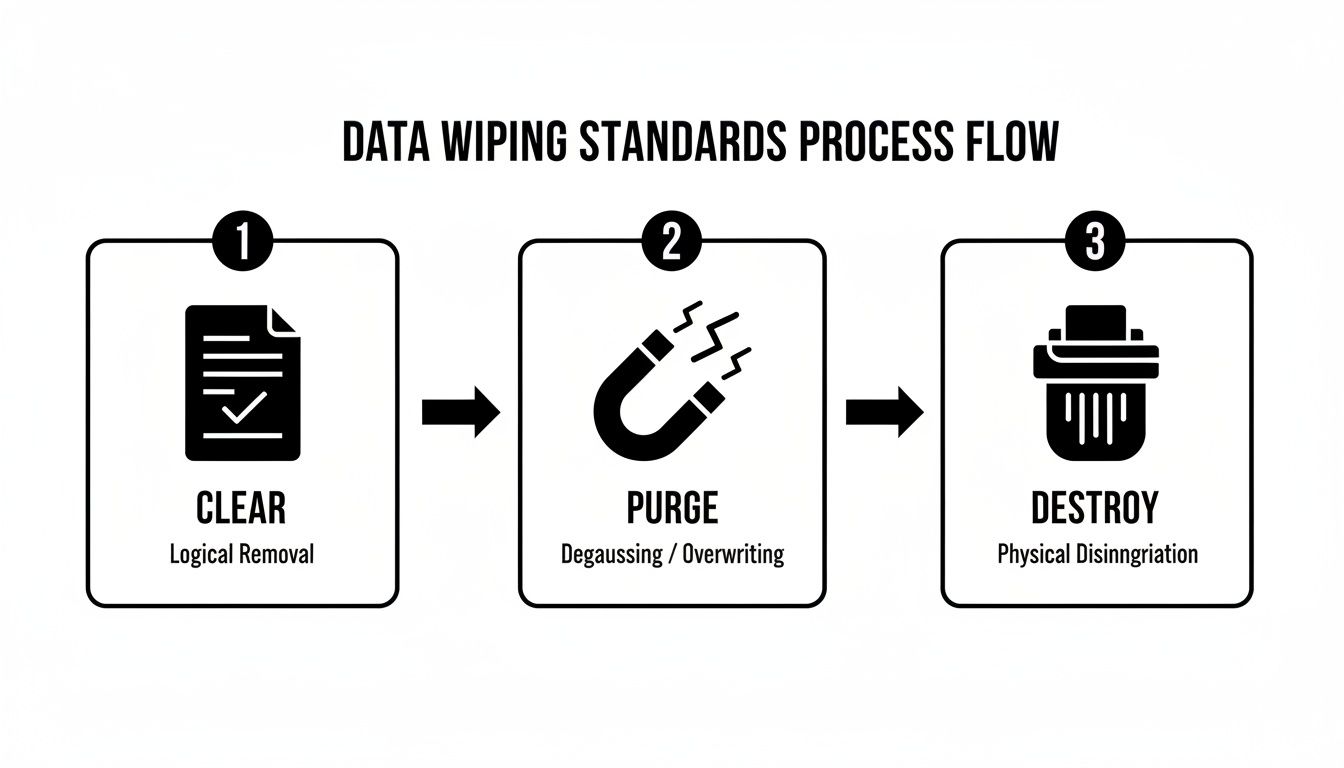
It’s a good way to see how different techniques align with NIST guidelines, so you can choose the right level of security for what you’re working on.
Wiping Drives on Linux Systems
As you'd expect, Linux gives you the most direct, granular control through the command line. A couple of common tools are:
shred: A command built specifically to overwrite a file or an entire drive to make it unrecoverable. Runningsudo shred -v /dev/sdawould securely wipe the entiresdadrive.dd: This is a powerful—and potentially dangerous—utility for copying data. You can use it to overwrite a drive with zeros (/dev/zero) or random data (/dev/urandom). A command likesudo dd if=/dev/urandom of=/dev/sda bs=4M status=progressis a common way to do a random-data wipe.
For SSDs, the go-to tool in the Linux world is hdparm, which lets you issue the ATA Secure Erase command directly to the drive’s firmware—the best method by far.
Recommended Tools for Cross-Platform Success
While the built-in utilities can work in a pinch, specialized third-party software usually offers more features, better reporting, and wider hardware compatibility. In my experience, Parted Magic is one of the best out there.
It's a complete disk management toolkit that boots from a USB drive, so it works on any machine. Most importantly, it has a simple graphical tool for issuing the ATA Secure Erase command to SSDs, and it's great at handling the firmware locks that can sometimes get in the way. This makes it an invaluable tool for IT pros who need a reliable way to sanitize any drive, no matter the OS.
Verification and Documentation for Full Compliance
Knowing how to wipe a hard drive is only half the job. The other half—and the part that really matters for any business—is proving you did it right. Without solid verification and documentation, all your data sanitization work is basically invisible and won't hold up in a compliance audit.
This final step is what turns a technical chore into a bulletproof business process. It's your official record, showing you've met your legal duty of care and protecting your organization from the massive legal and financial headaches of a data breach.
How to Verify a Successful Wipe
You can't just cross your fingers and hope the wipe worked. You have to actively confirm that zero recoverable data is left on that drive. This isn't optional, especially when you're dealing with hardware that held sensitive patient information, financial records, or company secrets.
Most professional-grade wiping tools have a built-in verification feature. After the software finishes overwriting the drive, it performs a read-back of the sectors to make sure they're filled with random data, not bits and pieces of your old files. This is your first and most critical line of defense.
Want an even higher level of confidence? Use the same tools the experts use. Forensic data recovery applications like FTK Imager or Autopsy are designed specifically to hunt down and piece together fragmented or partially deleted files. If you run a scan with one of these tools after a wipe and it comes up empty, you've got a powerful, independent confirmation that your sanitization was a success.
If a forensic tool can't find any data, you can be confident that nobody else will either. This is the step that provides real peace of mind and gives you a defensible position if your data security is ever challenged.
Creating an Ironclad Audit Trail
Verification is key, but the documentation is what proves your compliance to auditors, partners, and regulators. An audit trail isn't just a nice-to-have; it's often a legal requirement under frameworks like HIPAA, SOX, and GDPR. Your end goal is a Certificate of Data Destruction (CoDD) for every single asset you process.
This document is the official, permanent record of that drive's journey to end-of-life. The format can differ, but every legitimate CoDD must contain a few non-negotiable details to be considered valid.
Here are the essential elements for any Certificate of Data Destruction:
- Unique Serial Numbers: This is the most important detail. The serial number of the hard drive (or the device it came from) links the certificate directly to the physical piece of hardware.
- Sanitization Method Used: Be specific. State the standard you followed, like "DoD 5220.22-M 3-pass overwrite" or "NIST 800-88 Purge."
- Verification Results: Include a clear statement confirming the wipe was successfully verified and what the outcome was.
- Technician Information: The name and signature of the person who performed and verified the sanitization process.
- Date and Time: A precise timestamp marking when the process was completed.
This piece of paper is your shield. It proves you followed a defined, repeatable, and verifiable process. When you're managing a big lab cleanout or office decommissioning, keeping these records organized is everything. For large-scale projects, professional services offering electronic recycling with free pick-up can handle the entire process, and they always provide the certified documentation you need.
When to Partner with a Professional Wiping Service
Knowing how to wipe a hard drive is a great skill to have, especially if you're just dealing with a single machine or a small handful of them. But when you’re staring down a full-scale office cleanout or decommissioning an entire data center, the DIY approach can quickly turn into a massive resource drain and a serious compliance gamble.
That's the point where calling a professional service isn't just about convenience—it's a strategic move for businesses nationwide.
The biggest factor is scalability. Your IT team might be able to handle a few laptops a month without breaking a sweat. But decommissioning hundreds of machines? That requires specialized equipment, dedicated manpower, and a streamlined process most internal teams just aren't set up for. A professional service can chew through large volumes of drives efficiently, freeing your team to focus on their actual jobs instead of repetitive, high-stakes data destruction.
Ensuring Auditable and Certified Results
Beyond pure efficiency, professional services deliver something that’s nearly impossible to replicate in-house: certified, auditable proof of destruction.
If you're operating under strict regulations like HIPAA, having a third-party Certificate of Data Destruction for every single drive isn't just a nice-to-have; it's non-negotiable. This official documentation shifts the burden of proof off your shoulders and gives you a defensible record showing you met your legal obligations.
There's a reason the hard drive destruction service market is projected to nearly triple over the next decade. The risks of getting it wrong are just too high, with potential HIPAA fines hitting $50,000 per violation. When you consider that some consumer-grade software can fail on as many as 40% of SSDs, it’s clear that professional expertise is crucial for guaranteed compliance. For a deeper dive, check out this detailed market analysis from Spherical Insights.
Key Scenarios for Professional Partnership
It makes sense to bring in a professional data destruction partner in a few common situations:
- Large-Scale Technology Refreshes: You're upgrading dozens or even hundreds of computers across the organization, whether in one office or multiple locations across the country.
- Office Relocations or Closures: You need to be absolutely certain no sensitive data is left behind during a major move.
- Data Center Decommissioning: You're tasked with securely sanitizing thousands of server drives and storage arrays.
- Strict Regulatory Requirements: Your compliance framework (like HIPAA or DoD) mandates third-party verification and certified paperwork.
A professional wiping service transforms data destruction from a logistical headache into a secure, scalable, and fully documented business process. It provides the peace of mind that comes from knowing every drive is handled correctly and your compliance is secure.
By outsourcing this critical task, you're not just hiring help; you're gaining access to expertise, certified processes, and the documentation you need to stand up to any audit. To learn more about how these services operate, our guide on professional computer disposal services offers some great additional context.
Your Top Questions About Wiping Hard Drives, Answered
Even with the best guides, you're bound to run into specific questions when it's time to actually wipe a drive. We get calls from organizations here in Atlanta and all over the country with these exact same concerns. Here are the quick answers you need.
Does a Factory Reset Actually Wipe My Hard Drive?
No, a standard factory reset does not securely wipe your hard drive. Think of it more like a quick refresh for your operating system—it puts the software back to its original state, but your personal files often remain on the disk, just waiting to be recovered by someone with the right tools.
True data destruction means overwriting the data completely, which a factory reset simply doesn't do.
Is It Safe to Just Smash a Hard Drive with a Hammer?
While it might feel like a good way to let off some steam, smashing a drive with a hammer is a surprisingly bad way to destroy data. The internal platters that hold your information are tougher than they look, and a determined person could potentially piece together the fragments and pull data off them.
For physical destruction, professional shredding is the only method that guarantees the data is gone for good.
Simply cracking the case or bending the connectors does nothing to the data itself. To be secure, the platters must be shattered into tiny, unreadable pieces.
How Long Does It Take to Wipe a Hard Drive?
That's the million-dollar question, and the honest answer is: it depends. Several things come into play:
- Drive Size: Bigger drives take longer. A 1TB HDD can easily take several hours, sometimes overnight.
- Wiping Method: A simple single-pass wipe is quick, but a multi-pass method like the DoD 3-pass standard takes, well, three times as long (plus verification time).
- Drive Speed & Health: An old, slow drive is going to crawl compared to a modern one.
As a real-world example, a DoD 3-pass wipe on a healthy 500GB drive could take anywhere from 3 to 8 hours.
Can Wiped Data Ever Be Recovered?
If a hard drive is properly wiped using a robust, multi-pass standard like DoD 5220.22-M, the data is permanently and irreversibly gone. It's not just deleted; it's completely overwritten with random patterns of ones and zeros.
No known software or even a high-tech forensics lab can recover the original magnetic signals once they've been obliterated this way.
When you need certified, compliant, and fully documented data destruction, it's best to leave it to the professionals. Scientific Equipment Disposal provides free DoD 3-pass wiping and secure shredding for businesses nationwide, with a focus on serving the Atlanta metro area. Make sure your sensitive data is gone forever by visiting Scientific Equipment Disposal.